If you’ve been using Home Assistant for a while, you might have installed the popular OneDrive Backup addon to automatically sync your backups to the cloud. But Home Assistant overhauled its entire backup system in January 2025, and then in February 2025 (version 2025.2) added native cloud storage integrations—including OneDrive—built right into Home Assistant.
If you’re like me, you probably were quick to implement the native backup solution and left the addon running in the background. The result? You might have BOTH running at the same time without even realizing it, wasting system resources and creating duplicate backups.
Recently, I’ve been on a mission to clean up my Home Assistant setup and streamline resource usage—and that’s exactly what this “Optimizing Home Assistant” series is all about. In this guide, I’ll share my experience discovering this redundancy and walk you through how to identify if you’re running both, test which one is actually working, and safely migrate to the native integration to free up those resources.
A Quick Shoutout to the OneDrive Backup Addon
Before we dive in, I want to give proper credit where it’s due. The OneDrive Backup addon by lavinir has been a fantastic solution for the Home Assistant community since 2022—years before the native integration existed. It filled a genuine need and has been rock-solid for thousands of users.
The addon is still actively maintained and offers several features that the native integration doesn’t have (more on that below). So this isn’t about the addon being “bad”—it’s about understanding when you need those extra features versus when the simpler native solution is enough.
Why This Matters
When I discovered I had both the addon and the native integration running simultaneously, here’s what was happening:
- Both systems were creating backups—sometimes at the same time!
- Duplicate backups being uploaded to two different OneDrive folders
- Extra CPU and memory usage from running redundant services
- Confusion about which backup location to trust
- Wasted storage with identical backup files in multiple locations
The most surprising discovery? Both were actually working! When I created a manual backup, both the addon and native integration would upload it to their respective folders. They weren’t fighting each other—they were just both doing the job, which was completely unnecessary.
The native integration is simpler, more integrated with Home Assistant’s core backup system, and uses fewer resources since it’s built directly into the platform.
Step 1: Check If You Have Both Running
Here’s how to quickly determine your situation:
Check for the Native Integration
- Go to Settings → Devices & Services
- Look for OneDrive in your list of integrations
- If it’s there, you have the native integration installed
Check for the Addon
- Go to Settings → Add-ons
- Look for OneDrive Backup in your installed add-ons
- If it’s there, you have the addon installed
Check Your Backup Settings
- Go to Settings → System → Backups
- Click the gear icon or Configure Backup Settings
- Look at the list of backup locations
- Is “OneDrive” shown and enabled? That’s the native integration
If you found all three (integration installed, addon installed, and OneDrive enabled in backup settings), congratulations—you’re running both!
Step 2: Figure Out Which One Is Actually Working
This is where it gets interesting. Even if both are installed, only one might be doing the actual work. Here’s how to find out:
Method 1: Check Your OneDrive Folder Structure
Log into your OneDrive account via the web and check which folders exist:
Native Integration folders:
Apps → Home Assistant → backups_<id>- OR
Apps → Graph → backups_<id>(known issue due to a Microsoft Graph API quirk – This may also be Graph1, Graph2 if you have multiple applications that use the Graph API. )
Addon folder:
Apps → hassio_onedrive_backup
Check the timestamps on files in each folder. Whichever folder has the most recent backups is the one that’s actively working.
In my case, I found:
Graphfolder with backups from March (native integration was working but stopped)hassio_onedrive_backupfolder with current backups (addon took over)
Method 2: The Manual Backup Test (The Definitive Answer)
This is what revealed the truth in my case—both systems were actually running! Here’s how to test:
- Create a backup (Settings → System → Backups → Create Backup)
- Choose “Automatic” backup type
- Wait for it to complete
- Check BOTH OneDrive folders:
- Native integration:
Apps → Graph → backups_<id>orApps → Home Assistant → backups_<id> - Addon:
Apps → hassio_onedrive_backup
- Native integration:
The surprise discovery: In my case, the new backup appeared in both folders! They weren’t fighting each other or causing errors—they were both successfully uploading every backup. That’s when I realized I was running completely redundant backup systems.
This test will tell you:
- If you see the backup in only one folder → That system is handling it
- If you see it in both folders → You have both running (like I did!)
- If you see it in neither → Something is misconfigured
Step 3: Stop the Addon and Test the Native Integration
Once you’ve confirmed which system is working, it’s time to test the native integration on its own:
- Stop the addon:
- Go to Settings → Add-ons → OneDrive Backup
- Click Stop
- Wait for it to fully shut down
- Create another backup:
- Settings → System → Backups → Create Backup
- Choose “Automatic“
- Wait for completion
- Check OneDrive:
- Look in the native integration folder (
Apps → Graph → backups_<id>orApps → Home Assistant → backups_<id>) - Did a new backup appear?
- Look in the native integration folder (
If yes—the native integration is working perfectly! You can safely uninstall the addon.
If no—something is misconfigured with the native integration. Don’t worry, just restart the addon and we’ll troubleshoot.
Step 4: Clean Up and Optimize
Once you’ve confirmed the native integration is working:
Uninstall the Addon
- Go to Settings → Add-ons → OneDrive Backup
- Click Uninstall
- Confirm the deletion
Fix the “Graph” Folder Name (Optional)
That weird “Graph” folder name? It’s due to a quirk in Microsoft’s API. But you can rename it:
- Open OneDrive in your web browser
- Navigate to
Apps → Graph - Right-click and select Rename
- Change it to “Home Assistant” or whatever you prefer
- The integration will continue working with the renamed folder
Clean Up Old Backups (Optional)
You can delete the old hassio_onedrive_backup folder if you want, or keep it as an archive. The native integration won’t use these backups, but they’re still valid and can be restored if needed.
Step 5: CRITICAL – Backup Your Encryption Key
Here’s something incredibly important that many users overlook:
Home Assistant backups are encrypted by default, and if you lose the encryption key, your backups are completely useless—there’s no way to recover them.
Download Your Emergency Kit RIGHT NOW:
- Go to Settings → System → Backups
- Click Configure Automatic Backups
- Find the “Encryption key” section
- Either:
- Download your emergency kit (recommended—it’s a PDF with your key)
- Copy the key manually (28-character string)
Store It Safely:
- Password manager (Bitwarden, 1Password, LastPass)
- Physical paper in a safe location
- Multiple secure locations (don’t rely on just one)
Remember: This encryption key is NOT your Home Assistant password—it’s a separate key specifically for backups. Without it, your backups are worthless.
Bonus: Understanding What Changed
So why did this confusion happen in the first place?
The Timeline:
- Before January 2025: The only way to backup to OneDrive was through third-party addons like the OneDrive Backup addon
- February 2025: Home Assistant 2025.2 introduced native OneDrive integration
- Today: Many users have both installed because they never removed the addon after the native integration was added
The addon was a fantastic solution when it was needed, and it has more features than the native integration (like file syncing, backup pinning, and custom sensors). But for most users, the simpler native integration is all you need.
Benefits of the Native Integration
Here’s why the native integration is worth switching to:
- ✅ Built into Home Assistant – No separate addon to maintain or update
- ✅ Lower resource usage – More efficient since it’s part of the core system
- ✅ Simpler configuration – Managed through the standard backup settings
- ✅ Better integration – Works seamlessly with Home Assistant’s backup lifecycle
- ✅ Automatic updates – Updated with Home Assistant core releases
When You Should Keep the Addon Instead
That said, the OneDrive Backup addon has several features that power users might need:
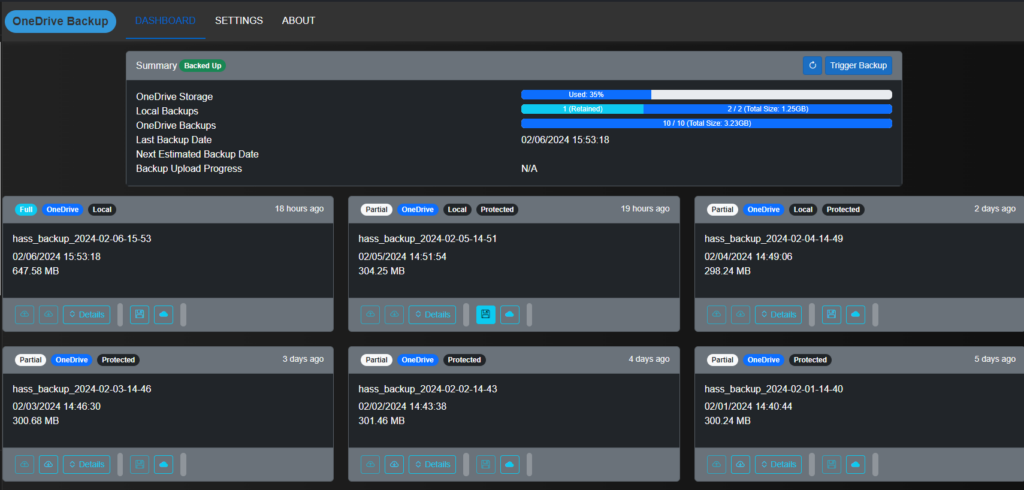
Advanced Features Not in Native Integration:
File Sync Capability
- Sync specific folders beyond just backups (like your Media folder) to OneDrive
- Maintain source folder structure in OneDrive
- Use wildcards to select what to sync
Backup Pinning
- Pin specific backups so they don’t count against your retention quota
- Keep important backups indefinitely while auto-deleting others
- Separate pin settings for local and OneDrive backups
Rich Monitoring & Automation
- Dedicated sensor entity (
sensor.onedrivebackup) with detailed status - Custom events fired on backup success/failure
- Persistent notifications in Home Assistant for backup failures
- Detailed progress tracking with transfer speeds
Advanced Configuration
- Support for multiple Home Assistant instances to the same OneDrive account
- Custom timeout settings for large backups
- Detailed Web UI for management
If you use any of these features, stick with the addon! It’s a more feature-rich solution that’s worth the extra resource usage if you need what it offers.
For most users though, who just want “backup my Home Assistant to OneDrive automatically,” the native integration does exactly that with less complexity.
Troubleshooting
“My backup shows OneDrive icon but the file isn’t in OneDrive”
Give it a few minutes. OneDrive uploads can be delayed, especially for large backups. The integration may show the OneDrive icon immediately but the actual upload happens in the background.
“I don’t see the OneDrive option in my backup settings”
Make sure the OneDrive integration is actually added:
- Settings → Devices & Services
- Add Integration → OneDrive
- Follow the authentication flow
“Both folders are getting new backups”
You definitely have both running! Follow the steps above to stop the addon and verify the native integration works on its own.
Final Thoughts
This evolution is a perfect example of how Home Assistant continues to evolve and improve. Features that once required third-party addons are increasingly being integrated directly into the core platform, making the system more efficient and easier to maintain.
The bottom line:
- If you just need basic automatic backups to OneDrive → Use the native integration
- If you need file syncing, backup pinning, or advanced monitoring → Stick with the addon
- If you have both running → Pick one and disable the other to save resources
By choosing the right solution for your needs, you’re:
- Freeing up system resources (if you switch to native)
- Getting the features you need (if you keep the addon)
- Eliminating redundancy and confusion
- Aligning with a backup strategy that makes sense for your setup
Plus, you’ll have the satisfaction of knowing your backup system is running optimally without any unnecessary duplication.
A huge thanks to lavinir for creating and maintaining the OneDrive Backup addon—it’s been an invaluable tool for the community and remains the best choice for advanced users who need those extra features!
Looking for more Home Assistant optimization guides? Check out my other home automation articles for tips on making your smart home more efficient.